Profile checkerNew

Your own account · read in your browser

The TikTok tracker for your own account

TikTok records every login — when, from which IP address, on which device — plus your followers, searches and messages. Download that archive, open it here and see it all in one report.

Drop the ZIP or .json from TikTok’s Download your data. Add a second, older archive to compare followers.

Read in your browser. The file is not uploaded, stored or sent anywhere — close the tab and it’s gone.

Profile checkerNew

Check a TikTok profile by username

Enter a username or profile link — the result opens in your dashboard.

Your report

Open your archive and the report builds right here

No archive yet? Press See a sample report above to see how a made-up account looks, then request your own in the app — the steps are just below. The report shows devices first, then each login, followers, activity and what the file did or didn’t contain.

No archive open yet

Your report will appear here. Try the sample — a made-up account with one login that isn’t the owner’s — or open your own file with the button at the top.

What the tracker shows

Everything your archive says about your account, in one place

Each tile is one part of the report. The data is a made-up sample; yours appears when you open your own archive.

Login history

Every login, with its device and network

Date, IP address, device model and system, network and carrier for each login TikTok recorded. The first time a device or network appears, it gets a flag — a reason to check, not proof of a stranger.

Open my report →

Location

Where your account was used

Your archive has IP addresses, not places: each points to a provider and a rough area. Other people only see places you tag in posts.

TikTok location tracker →

Read locally

Your file never leaves the device

The archive is opened by your browser. Login history, followers, activity — read on the spot; message text stays in the file, the report shows only counts.

Profile views

Who viewed your profile — and who never shows up

TikTok lists visits from the past 30 days, only from accounts that also turned the setting on. Anyone with it off stays invisible.

How profile views work →

Secure it

A device you don’t know? Remove it

TikTok’s own steps: Settings and privacy › Security & permissions › Manage devices, remove the device, then change your password under Account › Password.

Full plan if you were hacked →

What the tracker reads

What’s inside the archive TikTok gives you

When you use Download your data, TikTok packs the records it keeps about your account into one file. TkSpy recognises the sections by what’s in them, so it works with older and newer layouts of the archive.

These are the parts the report uses, with the fields TikTok’s own developer documentation lists for them:

  • Login history — date, IP address, device model, device system, network type, carrier
  • Followers and following — username and the date you were connected
  • Watch history and searches — date, video link, search term
  • Direct messages — date, sender, content (the report shows only counts and dates)
  • Recently deleted posts — when a post was published and when it was deleted
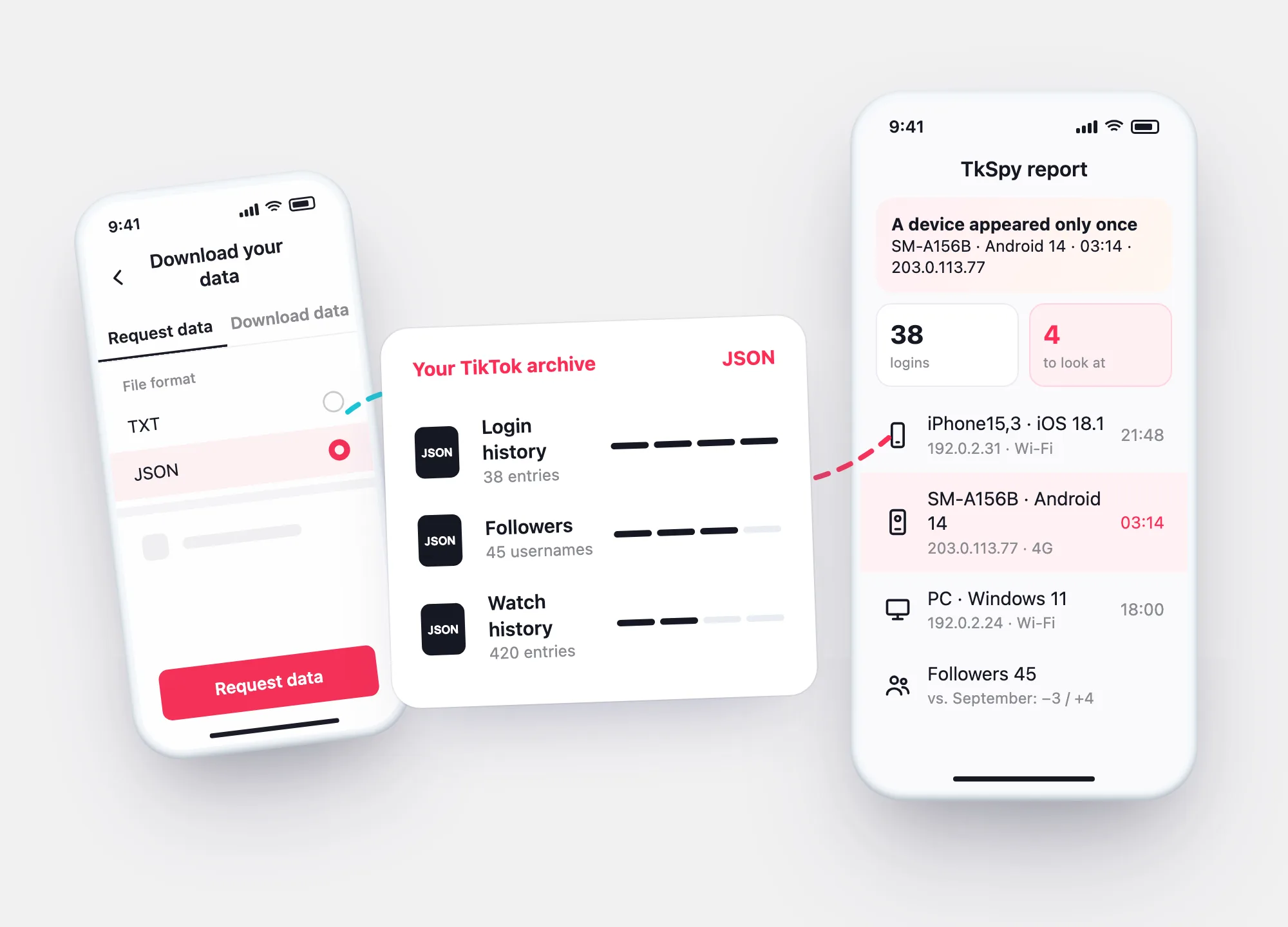
Diagram of a TikTok data archive: login history, followers, watch history and messages flowing into one activity report with a flagged unknown device
Each section of the archive becomes one part of the report. A device that appears for the first time is flagged so you can check it.

Before you start

Get your TikTok archive: three screens in the app

This is TikTok’s own feature. Open Profile → ☰ → Settings and privacy, then follow the marks. Choose JSON — the report reads JSON; the TXT version is for reading by eye.

1Account

In Settings and privacy, open Account — the first group.

2Download your data

Then Download your data. Pick what to include; all data gives the fullest report.

3JSON → Request data

Choose JSON and tap Request data. When it’s ready, it appears under Download data for 4 days.

TikTok notes that some data may be left out — for example where it affects other people’s privacy — and that the last 24–48 hours may not be in the file yet. For the most recent logins, request again a couple of days later.

Reading the report

What a flag on a login means — and when to act

The report flags the first time a device, a network or a carrier appears in your history. Most flags have an ordinary explanation; the table helps you tell them apart.

FlagUsually meansLook closer whenAct now when
New deviceYou got a new phone, used a laptop or signed in on a tablet.You don’t remember signing in on that model or system.Act The device is still listed in Manage devices and isn’t yours.
New networkDifferent Wi-Fi, mobile data, travel, a VPN.It appears at a time you weren’t using TikTok.Act It comes together with a new device or a changed email or phone.
New carrierSIM change, roaming, a different phone.Your SIM and phone haven’t changed.Check Look at the device on the same row.
Two devices within an hourYou switched from phone to laptop.One of the two devices isn’t yours.Act Someone else signed in while you were using the app.

The archive gives IP addresses, not places. An IP address points to a network provider and, roughly, a region — it is not a street address.

TikTok tracker vs. spy apps

What “TikTok tracker” and spy services promise, and what TikTok actually records

Searches for a TikTok tracker lead to two very different things: tools that read your own data, and services that claim to watch someone else. Here is how their usual promises line up with how TikTok works.

What the ad says

“See where anyone’s TikTok was logged in.”

What actually happens

Login history — with IP addresses and devices — is part of the account owner’s own data download. TikTok’s Help Center describes it only for your own account.

What the ad says

“Find out who viewed your profile, anonymously.”

What actually happens

TikTok’s built-in profile view history shows visits from the past 30 days, only from accounts that also turned the setting on, and only if you’re 16+ with fewer than 5,000 followers. How profile views work.

What the ad says

“Enter a username to read their messages.”

What actually happens

Direct messages appear in the archives of the people in that chat. A service that asks for your login code or password to “unlock” someone else’s messages is how accounts get taken over.

What the ad says

“Track a TikTok account’s location live.”

What actually happens

Other people see a location only when the author adds a place tag to a post. Where TikTok itself gets location data is explained on the TikTok location tracker page.

Questions

TikTok tracker questions

Is there a TikTok tracker that shows another person’s activity?
Not from TikTok’s own data. Logins, messages and searches are given only to the account owner through Download your data. Public profiles show posts and counts; that is all anyone outside can see.
Does TkSpy upload my TikTok data?
No. The file is read by your browser on your device. Nothing is sent to TkSpy or anyone else, and nothing is stored after you close the tab. You can disconnect from the internet after the page loads and the report still works.
Why does my archive have no login history?
TikTok says a section can be empty or missing when there is no data for your account or a feature isn’t available in your region. The report lists every section as found or “not in this file” so you can see what was included.
Can I track who unfollowed me on TikTok?
Yes, for your own account: download your archive now and again later, then open both files together. The report lists who disappeared from your followers and who is new. How the unfollow tracker works.
Does TikTok tell you when someone logs into your account?
Check the devices list in Settings and privacy → Security & permissions → Manage devices. The login history in your archive goes further back and adds the IP address and network for each login.
Which file do I open — the ZIP or the JSON?
Either. Open the ZIP TikTok gave you as it is, or the .json file inside it. The TXT version of the archive isn’t supported; request your data again and choose JSON.
Open my report